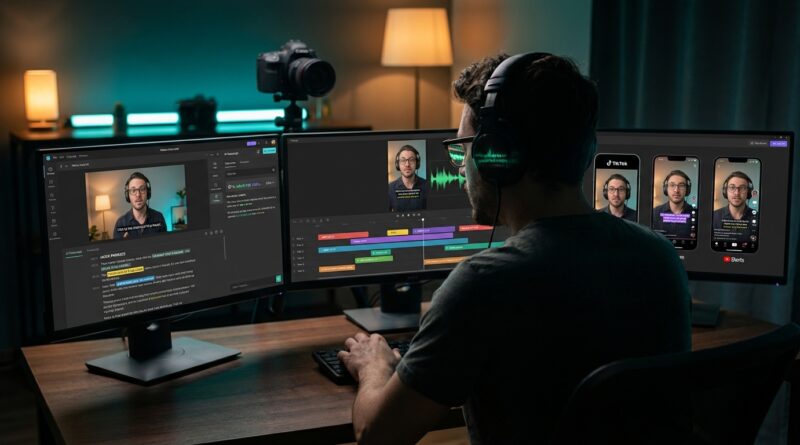
The 20‑Minute ‘AI Draft Pass’ Workflow: Stack Three Cheap Tools To Auto-Cut Your Reels Before You Ever Touch a Timeline
You record a solid idea in 10 minutes, then lose the next hour trimming pauses, fixing captions, and making three different versions for Reels, TikTok, and Shorts. That gets old fast. Most creators do not hate making videos. They hate doing the same cleanup work over and over. That is the part that feels like a tax. The good news is you do not need one giant AI app to take over your channel. You need a simple ai video editing workflow for reels and tiktok that handles the first pass for you. Think of it like hiring a very fast assistant to mark the good bits, cut the dead air, and prep captions before you open your real editor. Then you come in for the part humans still do best. Picking the strongest hook, tightening the pacing, and making sure the finished video still sounds and feels like you.
⚡ In a Hurry? Key Takeaways
- Use three separate tools for transcript, rough cuts, and captions instead of trusting one all-in-one app to do everything well.
- A fast stack is: transcript and clip detection in Descript or MacWhisper, rough social edit in OpusClip or Captions, then final polish in CapCut or Premiere.
- Keep AI on the first 80 percent only. You still need to check captions, cuts, and framing so your videos do not end up looking generic or wrong.
The 20-minute draft pass, in plain English
The idea is simple. You stop opening your main editor first.
Instead, you run every talking-head video or voice-led explainer through a three-step draft pass:
Step 1: Get a transcript and detect the useful moments
Use a tool that turns speech into text and makes it easy to spot hook-worthy lines, repeated takes, and dead air. Descript is still one of the easiest choices here. If you want something cheaper and more private on Mac, MacWhisper is a strong option for transcription.
Step 2: Let a clip tool build the rough cut
Take that full recording and feed it into a social clip tool like OpusClip or Captions. These tools are good at finding sentence boundaries, removing obvious pauses, reframing a speaker for vertical video, and giving you a first pass that is surprisingly usable.
Step 3: Finish in your normal editor
Now open CapCut, Premiere Pro, or Final Cut only after the heavy lifting is done. You are no longer starting from a 15-minute blob. You are starting from a clean, captioned, vertical-ready rough draft.
That is the whole trick. AI does the sorting and sweeping. You do the taste.
The best cheap three-tool stack right now
You can mix and match, but this setup makes sense for most solo creators in March 2026.
Option A: Descript + OpusClip + CapCut
This is the easiest stack for beginners.
- Descript for transcription, filler-word spotting, and finding the strongest sections by reading instead of scrubbing.
- OpusClip for automatic short clip creation, silence trimming, reframing, and platform-friendly exports.
- CapCut for the final polish, brand fonts, sound tweaks, overlays, B-roll swaps, and manual pacing fixes.
Why it works: each tool has one job. None of them has to be perfect. Together, they save a lot of time.
Option B: MacWhisper + Captions + Premiere Pro
This is better if you already edit seriously and just want AI to clear the brush before you step in.
- MacWhisper gives you a fast transcript from local files.
- Captions handles auto-caption styling, talking-head reframing, and quick social-ready drafts.
- Premiere Pro is where you lock story, timing, music hits, and final exports.
Why it works: it keeps costs lower if you already pay for Adobe and want more control at the end.
What this actually looks like on a real Reel
Let’s say you filmed an 8-minute talking-head video called “3 mistakes people make when buying a USB mic.”
Here is the 20-minute pass:
Minute 1 to 4: Transcribe and skim
Drop the full file into Descript. Read the transcript like a document. Highlight the best opening line, maybe “Most people buy the wrong mic for the wrong room.” Cut duplicate starts, long breaths, and the section where you checked your notes.
Minute 5 to 10: Auto-build the social cut
Send the cleaned file to OpusClip. Let it create a 45 to 60 second vertical version. Turn on auto-reframe if your hands move around a lot. Pick one clip, not five. The goal is speed.
Minute 11 to 15: Clean captions and framing
Check every caption. AI still mishears brand names, slang, and numbers. Fix those now. Make sure the frame is not cropping your chin or cutting off a product you are holding.
Minute 16 to 20: Final polish in CapCut or Premiere
Add your branded text style, a progress bar if it helps, two or three B-roll cutaways, and a stronger ending. Export. Done.
If you are still building a visual identity, pair this workflow with Steal This ‘AI Template Stack’ To Make Every Reel Look Branded In Under 15 Minutes. It fits naturally after the draft pass because once AI gives you a usable cut, templates make the finish line much faster.
Why stacking tools beats the “one app does all” promise
This is where a lot of creators get stuck.
They either edit everything by hand, which eats their week, or they hand the keys to one AI app that writes the captions, chooses the cuts, picks the visuals, and spits out something that feels weirdly anonymous.
The better approach is boring, and that is why it works.
One tool listens. One tool cuts. One tool finishes.
That gives you:
- Better transcripts
- Cleaner rough edits
- More control over your final style
- Less risk of every video looking like a preset factory output
You are not buying magic. You are buying time back.
Where AI is great, and where it still needs you
AI is great at:
- Removing obvious silence
- Detecting speech segments
- Creating first-pass captions
- Turning widescreen footage into vertical drafts
- Finding likely short-form moments in long clips
You still need to handle:
- Choosing the strongest hook
- Checking whether the story actually flows
- Fixing captions for names, products, and jokes
- Making cuts feel human instead of robotic
- Protecting your own voice and pacing
This matters because viewers can feel when a video has been over-automated. The edit may be clean, but the energy feels off. Good creators notice that right away.
A simple copy-and-paste workflow you can use today
If you want a repeatable ai video editing workflow for reels and tiktok, use this:
- Record one long take instead of stopping every time you mess up.
- Upload to Descript or MacWhisper for transcript.
- Delete false starts, long pauses, and repeated lines from the transcript level.
- Export the cleaned video.
- Import into OpusClip or Captions.
- Generate one vertical clip draft with captions.
- Review captions word by word.
- Open in CapCut or Premiere for final polish.
- Add brand styling, B-roll, music dips, and your CTA.
- Export versions for Reels, TikTok, and Shorts.
That last part is important. AI can get you close, but different platforms still reward slightly different pacing and on-screen text spacing. Do not blindly post the exact same export everywhere if the framing or title treatment looks cramped.
How much money do you need to spend?
Less than you probably think.
A lot of creators assume speed requires enterprise software. It does not. Most of these tools have starter tiers, trial plans, or affordable monthly options. You can often build a workable stack for less than what many people spend on one plugin bundle they barely use.
If money is tight, start here:
- Use MacWhisper or another affordable transcription tool.
- Use CapCut for final editing.
- Test OpusClip or Captions only during weeks when you are batch-producing content.
This keeps your fixed costs low while still cutting hours off your week.
Common mistakes that ruin the workflow
1. Sending messy footage into the stack
If your audio is noisy and your framing is chaotic, AI has to guess too much. The better your raw file, the better your draft pass.
2. Generating too many clip options
Choice can slow you down as much as manual editing. Pick one or two strong drafts and move on.
3. Trusting auto-captions without checking
This is how you end up with embarrassing errors on proper names, prices, or product terms.
4. Letting the tool pick your hook every time
Sometimes AI picks the most literal sentence, not the most interesting one. You know your audience better.
5. Skipping a style system
If every finished Reel uses a different caption look, font, and intro, your feed feels random. Once the draft pass is working, lock in a repeatable visual style.
At a Glance: Comparison
| Feature/Aspect | Details | Verdict |
|---|---|---|
| Best beginner stack | Descript for transcript cleanup, OpusClip for rough vertical cuts, CapCut for final polish | Fast, simple, and easy to learn |
| Best for advanced editors | MacWhisper for cheap transcription, Captions for social prep, Premiere Pro for precise finishing | More control if you already know your editor well |
| Main rule | Let AI handle detection, trimming, captions, and reframing, then step in for pacing, brand, and story | Best balance of speed and originality |
Conclusion
You do not have to choose between hours of manual editing and a one-click robot video that looks like everyone else’s. That is the false choice trapping a lot of creators right now. The smarter move is to plug together a few proven tools and let each one do a small job well. In March 2026, that is the real edge. Detection, rough cutting, captioning, and formatting can happen before you ever touch a timeline. Then you spend your energy where it counts, on pacing, performance, and story. Try this on your next talking-head clip or B-roll explainer. Keep it simple. One transcript tool, one rough-cut tool, one finishing editor. If that turns your usual 90-minute edit into a 20-minute AI-assisted session without flattening your voice, that is not just a productivity win. It is a sanity win too.