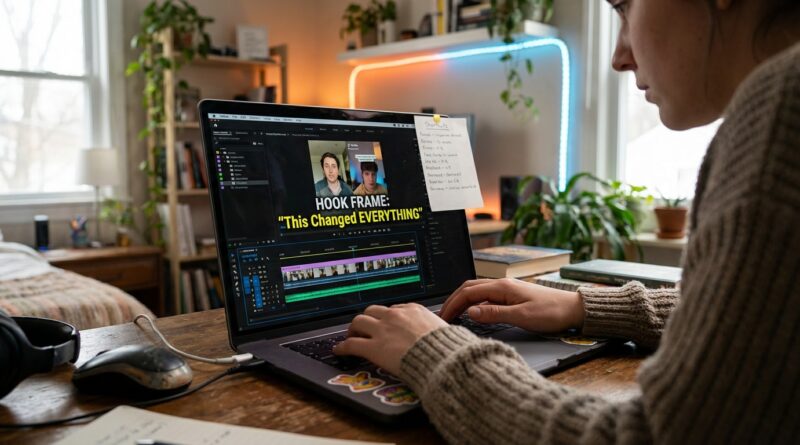
The ‘Keyboard-Only Cutdown’ Hack: Edit TikToks And Reels 2x Faster Without Upgrading Your Gear
If editing a 60-second TikTok feels like doing surgery with oven mitts on, you are not imagining it. Most of the time drain is not the creative part. It is the tiny stuff. Opening menus. Dragging little clip edges. Zooming in and out on a cramped timeline. Missing the cut by a frame, then doing it again. That is how 5 minutes of actual decision-making turns into 30 or 60 minutes of fiddling. The good news is you probably do not need a faster laptop, a new phone, or some expensive editor. You need a smaller, smarter habit. The keyboard-only cutdown hack is exactly that. Learn a short list of video editing keyboard shortcuts for TikTok and Reels, and you can rough cut faster in almost any app. Once that clicks, your edits get tighter, your testing gets easier, and posting more often stops feeling like a second job.
⚡ In a Hurry? Key Takeaways
- Using a small set of keyboard shortcuts can cut rough-edit time for TikTok and Reels from around 20 minutes to about 5 to 10 minutes.
- Start with just six actions: play/pause, step frame, split, ripple delete, undo, and zoom timeline.
- This works across most editors, so you are not stuck if an app changes, gets banned, or pushes you into a template you do not want.
The hack is simple. Keep your hands off the mouse for the rough cut.
The fastest creators are not magically better at dragging clips around. They just make fewer slow movements.
The “keyboard-only cutdown” means you do your first pass using mostly keys, not menus and not precision mouse work. You watch the clip. You mark the dead space. You split. You delete the bad part. You move on. No tiny handles. No hunting for tool icons.
This works especially well for short-form video because TikToks and Reels live or die on pace. A lazy half-second pause feels huge in a 60-second video. So speed in editing is not only about saving time. It also helps you be more ruthless.
The six shortcuts that matter most
Different apps use different keys, but the actions stay almost the same. If you remember the actions first, you can map them in any editor.
1. Play and pause
Usually the spacebar. This is your home base. Get used to tapping it constantly instead of clicking the preview window.
2. Step one frame backward or forward
Often the left and right arrow keys, or J, K, L in pro editors. This is how you land exactly on the word, breath, or reaction shot you want.
3. Split or blade at the playhead
This is the money shortcut. In many editors it is something like Command+B or Control+B. Instead of dragging clip edges, you park the playhead and cut cleanly.
4. Ripple delete
This removes the selected chunk and closes the gap automatically. If your app supports it, learn it immediately. It saves a shocking amount of time.
5. Undo
Yes, this sounds obvious. But fast editors use undo fearlessly. If you are scared to move quickly, you edit slowly.
6. Timeline zoom in and out
You need this for detail work without pinching and dragging all over the place. Zoom out to move fast. Zoom in for exact cuts.
Your first keyboard-only workflow
Here is the basic routine for video editing keyboard shortcuts for TikTok and Reels. Keep it boring. Boring is fast.
Pass 1: Remove obvious junk
Watch from the start. Cut out false starts, long breaths, repeated lines, and the two seconds after you finish speaking but forget to stop recording.
Do not add music yet. Do not color grade. Do not resize captions. You are just removing waste.
Pass 2: Tighten the hook
The first 1 to 3 seconds matter most. Use frame-step and split to cut every bit of hesitation before the first useful word or visual lands.
This is where most creators lose time because they keep replaying and dragging handles. Instead, tap. Cut. Delete. Replay. Done.
Pass 3: Trim pauses between lines
You do not need to sound like a robot. But most spoken short-form videos can lose more silence than people think. Keyboard editing makes this easy because you can cut around pauses with a few taps.
Pass 4: Add polish after the structure works
Only now should you add captions, overlays, music, auto-cut help, or B-roll. If the structure is weak, polish just hides the problem.
Why this beats relying only on auto-cut tools
Auto-cut tools are useful. They can remove dead air and help with batching. But they are still rough helpers, not mind readers.
They do not always know which pause is dramatic and which one is awkward. They do not know which flub makes you sound human and which one makes viewers scroll away. That last 20 percent is still manual. And that is exactly where the keyboard-only method saves your day.
The best setup is not “manual or AI.” It is AI for the bulk work, then keyboard shortcuts for the final human judgment.
What this looks like in real life
Let’s say you record three talking-head clips for the day. Each one is about 90 seconds raw. On a phone timeline, you might spend 20 minutes per clip just cleaning them up. That is an hour gone before captions and posting.
With a keyboard-first rough cut on desktop, or on a tablet with keyboard support, you can often get each clip down to 5 to 10 minutes. That means your three clips are now a half-hour job, not a full afternoon.
That is the real win. More reps. More hooks tested. Less burnout.
How to set this up in almost any editor
You do not need to switch to one “perfect” app. Most editors let you work this way.
CapCut
CapCut is popular for a reason. It has enough speed features for short-form work without feeling intimidating. Check the shortcut list in settings and learn the cut, delete, and zoom commands first.
Premiere Pro
If you are already there, great. You can customize nearly everything. Set up ripple delete and add edit somewhere comfortable, then stop reaching for the toolbar.
Final Cut Pro
Very fast once the shortcut habit clicks. Magnetic timeline fans already know how much time this can save.
DaVinci Resolve
Yes, even if it feels “too pro” for social clips, the basics are excellent. And if your editor changes later, the core actions still transfer.
Mobile apps with keyboard support
If your tablet or phone editor works with a Bluetooth keyboard, test it. Even partial shortcut support can make rough cutting less painful.
The rule that keeps this from getting messy
Use the keyboard for structure. Use the mouse for design.
That one sentence keeps your workflow clean. Keyboard for cuts, trims, deletes, playback, and navigation. Mouse or touch for caption placement, graphics, and fine visual tweaks.
If you mix those too early, your speed falls apart.
Common mistakes that make shortcuts feel useless
Trying to learn 25 shortcuts at once
Do not do that to yourself. Learn six. Then maybe add three more later.
Editing while zoomed in too far
If you can only see a tiny section of the timeline, you lose context and make more mistakes. Zoom out often.
Polishing before the cut is locked
This is the classic trap. You spend ten minutes styling captions on a clip you later delete.
Using the wrong device for the stage of work
Phones are great for capture and posting. They are often terrible for repetitive micro-edits. If you can move rough cutting to a keyboard device, do it.
A good starter shortcut cheat sheet
Write these on a sticky note and keep it next to your screen for a week:
- Spacebar: play/pause
- Left/right arrows: move by frame or small step
- Split: cut at playhead
- Delete or ripple delete: remove junk fast
- Command+Z or Control+Z: undo
- Plus/minus or app-specific zoom keys: timeline zoom
That is enough to change your editing speed.
Why this matters more now than it did a year ago
Platforms keep shifting. Features move. Editors rise and fall. Some tools get packed with templates, while others get stripped down or bundled into subscriptions.
If your whole process depends on one app’s layout, you are fragile. If your process depends on universal actions like split, step, delete, and ripple delete, you are flexible. That matters when policies change or when you suddenly need to switch tools and keep publishing.
At a Glance: Comparison
| Feature/Aspect | Details | Verdict |
|---|---|---|
| Keyboard-only rough cut | Fast trimming, splitting, playback control, and gap removal with minimal mouse use | Best speed boost for most creators |
| Mouse or touch-first editing | Easy to learn, but slower for frame-accurate cuts and repetitive cleanup | Fine for polish, weak for bulk cutting |
| Auto-cut tools only | Good for removing dead air and batching, but misses human timing and nuance | Useful helper, not a full replacement |
Conclusion
You do not need to become a full-time editor to get faster. You just need a repeatable way to stop wasting energy on manual micro-edits. Right now there is a flood of AI tools and auto-cut apps, and they are genuinely helpful for batching. But most creators are still getting stuck in the same place, the small hand-work that quietly eats an hour at a time. If you can rough cut a 60-second TikTok or Reel in five minutes instead of twenty, you get more chances to test better hooks, post more often, and stay sane while doing it. That is the real point of this keyboard-only cutdown hack. It is minimal, cross-app, and portable. Learn the actions once, then carry them anywhere. When platforms shift and editing apps change their rules, you will still know how to move fast.