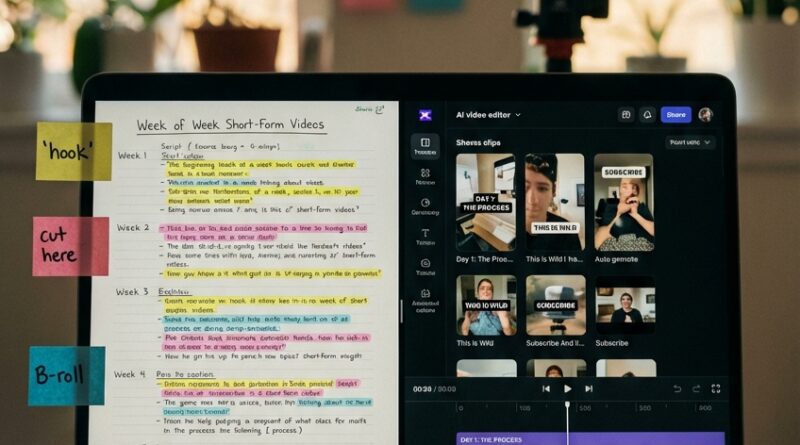
The ‘One-Script Batch Edit’ Hack: Turn A Week Of Reels Into Clips In A Single Text Pass
Editing Reels one by one is the fastest way to hate making Reels. You record one solid long video, open your editor with good intentions, then spend hours trimming pauses, finding hooks, resizing frames, and rewriting captions for every single clip. After the third export, your brain is mush and the trend you wanted to jump on already feels old. That is the real problem. It is not that creators are lazy. It is that the old timeline-first method is painfully slow.
A better fix is a batch video editing workflow for social media with ai transcript tools. Instead of scrubbing footage clip by clip, you start with the transcript, mark the strongest moments in text, and turn those lines into a simple script for multiple cuts at once. One recording session can become a week of Shorts, Reels, and TikToks. Less dragging. Less guessing. More posting. If you are a solo creator, this is one of the easiest ways to keep volume up without turning editing into a second full-time job.
⚡ In a Hurry? Key Takeaways
- A text-first batch workflow lets you pull several short clips from one long recording much faster than editing each Reel by hand.
- Start with an automatic transcript, highlight strong lines, then turn those highlights into a simple cut list your editor or AI tool can follow.
- You still need to review exports for accuracy, captions, and pacing, but this method can save hours every week.
Why the old way feels so slow
Most creators were taught to edit visually. Drop footage on a timeline. Watch it. Cut it. Move things around. Repeat. That works fine for one polished video. It is awful for daily short-form content.
The problem is not just the editing. It is the decision-making. Every clip asks the same questions. Where does the hook start? Which sentence should go first? Is this pause charming or just dead air? Should you zoom here? Add captions there? Now multiply that by seven clips for the week.
A text-first workflow cuts down those decisions early. Once your spoken words are turned into text, you can scan for the good parts in minutes. You stop hunting through footage and start selecting ideas.
What the “one-script batch edit” hack actually is
Think of it as making an edit plan in plain English before you touch the timeline.
You record one longer talking-head video, podcast section, coaching call, demo, or rant. Then an AI transcript tool turns that recording into text. From that transcript, you create a short “batch script” that tells your editing tool what to make.
A simple example
Let’s say you record a 20-minute video called “3 mistakes new Etsy sellers make.” Your batch script might look like this:
Clip 1: Start at the first strong line about pricing too low. Keep under 35 seconds. Add bold captions. Use a punchy opening title.
Clip 2: Pull the section where you explain bad product photos. Keep the example. Cut filler words.
Clip 3: Use the bit about unclear shipping times. End on a call to comment “guide” for more help.
Clip 4: Find the funniest line from the intro and turn it into a short cold-open teaser.
That is the hack. One text pass. Several outputs.
How to build a batch video editing workflow for social media with ai transcript tools
Step 1: Record in chunks, not in perfect takes
Stop trying to film seven separate Reels. Record one longer session around one topic. Aim for 10 to 30 minutes. Speak naturally. If you mess up, pause and repeat the sentence. Transcript-based editors are very good at removing the messy bits later.
This works especially well for:
- Talking-head advice videos
- Product explainers
- Coaching or consulting content
- Podcast video clips
- Course previews
Step 2: Generate the transcript right away
Upload the recording into a tool that creates editable transcripts. Descript, CapCut, VEED, Riverside, OpusClip, and similar tools all have some version of this. The exact app matters less than the feature set.
You want three basics:
- Accurate transcript editing
- Easy highlighting or clip selection
- Automatic captions and vertical export
Step 3: Mark the strongest moments in text
Read the transcript like an editor reading a rough draft. Highlight anything that sounds like one of these:
- A sharp opinion
- A useful how-to step
- A surprising stat or claim
- A story beat
- A clean one-sentence hook
- A strong closing line
You are not trying to save the whole video. You are looking for repeatable social moments.
Step 4: Write a mini cut list
Now turn those highlights into instructions. Keep it simple. You can do this in a note, spreadsheet, or inside the editor comments panel.
Use a format like this:
- Clip name
- Transcript line or timestamp
- Target length
- Hook text
- Caption style
- Visual notes
- Call to action
Example:
Clip 2. Transcript lines 114 to 149. Target 28 seconds. Hook: “Most people are losing views in the first two seconds.” Add punch-in after first sentence. End screen: “Follow for daily creator tips.”
This is where batch speed comes from. You make decisions once, in text, before you start fiddling with visuals.
Step 5: Let the tool build rough cuts
Many editors can now create clips from highlighted transcript sections. Some can even suggest likely short-form moments for you. That does not mean you should accept every automatic choice, but it gives you a fast first draft.
This is also the point where related tools can help with the ugly empty spaces between cuts. If you want help covering jump cuts and awkward visual gaps, The ‘Auto B‑Roll Engine’ Hack: Let AI Fill Every Awkward Gap In Your Reels Timeline is worth a look.
Step 6: Polish as a batch, not one clip at a time
Once your rough cuts exist, do finishing work in groups:
- Apply caption style to all clips
- Set branding once
- Choose framing for all vertical exports
- Add end cards in one pass
- Export platform versions together
This part matters. If you fully finish Clip 1 before even opening Clip 2, you fall back into the same old time sink.
What a practical weekly setup looks like
Here is a simple system a solo creator can actually keep up with.
Monday: Record
Film one 20-minute talking-head session on a single topic.
Tuesday: Transcript and select
Upload the file. Read the transcript. Highlight 5 to 8 strong moments.
Wednesday: Build the cut list
Turn highlights into short instructions. Decide hook, length, and CTA for each clip.
Thursday: Generate and clean
Make rough cuts from transcript selections. Remove filler. Fix captions. Reframe for vertical.
Friday: Package and schedule
Write descriptions, choose covers, export, and schedule the posts.
That is your week of content. One recording session. One text pass. Several finished clips.
Where AI helps, and where it still needs your eyes
AI is very good at repetitive work. It is good at finding sentences, trimming silence, generating captions, and suggesting likely clips.
It is not great at taste.
You still need to check:
- Whether the hook actually sounds human
- Whether the cut starts too late
- Whether captions got names or jargon wrong
- Whether the clip makes sense out of context
- Whether the ending feels complete
That is the balance. Let software do the sorting and rough cutting. Keep the final judgment for yourself.
Common mistakes that ruin batch editing
Trying to batch bad source footage
If your audio is muddy, your lighting is all over the place, or your framing changes every minute, batch editing gets harder. Clean input still matters.
Pulling clips with no standalone value
A good long-form segment is not always a good Reel. Each short clip needs a clear setup, a point, and some kind of finish.
Making every clip the same
Batching should save time, not flatten your personality. Vary clip length, hook style, and pacing. One can be educational. Another can be a quick opinion. Another can be a reaction.
Over-trusting auto clip suggestions
Some tools will pick the most obvious or loudest lines, not the most useful ones. Review everything.
Best tool features to look for
If you are shopping around, focus less on brand hype and more on workflow fit.
Look for tools that offer:
- Fast transcript editing
- Scene or speaker detection
- Highlight-to-clip creation
- Auto silence removal
- Vertical reframing
- Caption templates
- Batch export options
- Simple team comments if you work with an assistant
If a tool looks flashy but still forces you back into manual timeline work for every clip, it is not really helping.
Who this works best for
This method is perfect for creators who talk for a living or can easily record useful ideas in longer bursts.
- Coaches
- Consultants
- Teachers
- Podcasters
- Founders
- Review creators
- Personal brand creators
If your content is highly cinematic, music-driven, or built around fast visual storytelling, you can still use transcript tools for rough structure, but your finishing process will be more hands-on.
At a Glance: Comparison
| Feature/Aspect | Details | Verdict |
|---|---|---|
| Timeline-first editing | Good for one polished piece, but slow when you need several social clips from the same recording. | Best for custom edits, not daily volume. |
| Transcript-first batch workflow | Lets you scan spoken content quickly, mark standout lines, and build multiple shorts in one pass. | Best time-saver for solo creators posting often. |
| AI-assisted finishing | Useful for captions, silence removal, reframing, suggested clips, and filler visuals, but still needs human review. | Use it to speed up repetitive work, not replace your judgment. |
Conclusion
The goal is not to become a robot content factory. It is to stop wasting your best energy on repetitive editing choices. Right now the conversation in creator forums is not just about the best editor anymore. It is about how to keep up with posting volume without burning out on the edit. A text-first, batch-oriented workflow is the fastest way for solo creators to go from one talking-head recording to several platform-ready clips, and it fits neatly with today’s AI-assisted tools that can read transcripts, suggest cuts, and help fill visual gaps. Start simple. Record one long video, make one cut list, and ship three to five clips from it. Once that clicks, you will spend less time staring at timelines and more time actually publishing.