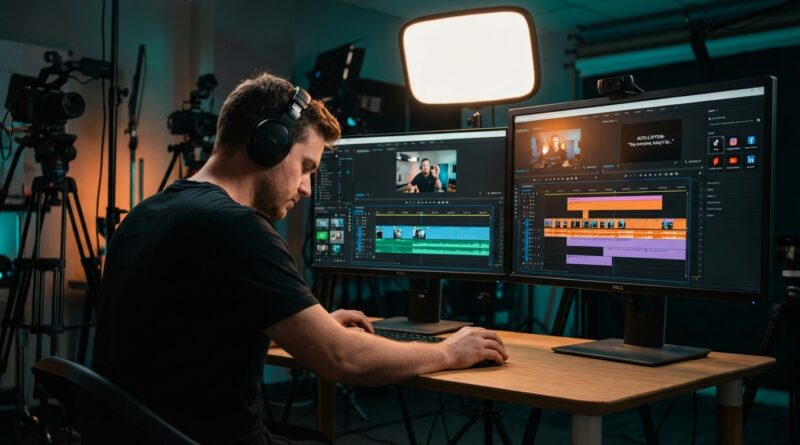
The ‘Two-Timeline’ Hack: Steal This Pro Trick To Edit Once And Ship Everywhere
You know the feeling. You finish a short video, post it to Instagram, and it does great. Then the real pain starts. TikTok needs a slightly different crop. YouTube Shorts wants cleaner timing. LinkedIn needs a calmer caption style. Suddenly your “done” edit is not done at all. You are rebuilding the same 30 seconds over and over, and it is a huge waste of energy. The fix is a simple short form video editing workflow for multiple platforms that many pros use quietly. Build two timelines, not four. The first is your master story cut. The second is your platform delivery cut. Edit the idea once, then adapt it quickly for each app without touching the core pacing every single time. It is faster, cleaner, and much easier to stay consistent when you are posting across TikTok, Reels, Shorts, and LinkedIn.
⚡ In a Hurry? Key Takeaways
- Use two timelines: one master edit for story and pacing, one delivery edit for each platform’s format and polish.
- Lock your cut first, then swap captions, crop, safe zones, and hooks without re-editing the whole video.
- This saves time and reduces mistakes, especially when posting the same clip to TikTok, Reels, Shorts, and LinkedIn.
What the two-timeline hack actually is
Think of it like meal prep.
You cook the main dish once. Then you plate it differently depending on who is eating. Same food. Different presentation.
That is the whole idea here.
Timeline one is your master timeline. This is where you do the real creative work. You pick the best takes, trim dead space, tighten the hook, clean up audio, and build the story.
Timeline two is your platform timeline. This is where you make the video feel native for the app you are posting to. You adjust framing, move captions, change title cards, trim for timing, and swap graphics if needed.
The big rule is simple. Do not keep re-cutting the story in the platform timeline unless something truly needs changing.
Why creators waste so much time without realizing it
Most people edit inside the app they plan to post to first. That feels quick in the moment, but it creates a mess later.
You end up with one Instagram version, one TikTok version, one Shorts version, and maybe a LinkedIn version that is sort of close but not quite right.
Now your files are scattered. Your captions drift. Your pacing changes by accident. And when a comment says, “Can you repost this with better subtitles?” you have no clean source to update.
That is why a proper short form video editing workflow for multiple platforms matters. It is not about being fancy. It is about keeping your sanity.
Set up Timeline 1: Your master story cut
This is the timeline that matters most. If this one is solid, everything downstream gets easier.
1. Pick one canvas and stick with it
You can make your master timeline in 16:9 or 9:16. Either can work. For most social-first creators, I would start in 9:16 because all four target platforms support vertical video well.
If your footage was shot wide and you need flexibility, edit in a larger resolution source project and reframe later.
2. Cut for story, not platform rules
Focus on the bones of the video.
- The hook in the first 1 to 2 seconds
- The strongest sound bites
- Fast removal of filler words and pauses
- A clear payoff or ending
Do not worry yet about whether LinkedIn wants a softer CTA or TikTok can handle a punchier opening. Just make the best version of the idea.
3. Clean your audio here
Noise reduction, leveling, background music, and voice clarity should happen in the master timeline. Audio fixes are annoying to repeat, so do them once.
4. Add a basic caption layer if you want
Keep it simple. A clean subtitle style can live in the master. But avoid platform-specific text placement at this stage, because safe zones vary.
5. Lock it
Once the pacing feels right, treat this like your source of truth. Name it clearly. Something like:
VIDEO_NAME_MASTER_LOCKED_v1
Set up Timeline 2: Your platform delivery cut
Now duplicate the master timeline. This is the version you tailor for each destination.
You can either make one delivery timeline per platform or one delivery timeline per post variation. For example:
- VIDEO_NAME_TIKTOK
- VIDEO_NAME_REELS
- VIDEO_NAME_SHORTS
- VIDEO_NAME_LINKEDIN
What changes here
- Reframing for each app’s safe zones
- Caption size and vertical placement
- On-screen text wording
- Opening title card style
- Ending CTA
- Length trims if one platform needs a tighter version
What should not change here
- The core story structure
- The best selects
- Main audio cleanup
- Your base visual rhythm
This distinction is where the time savings happen.
How each platform usually differs
Here is the practical part. Platforms may all support vertical video, but they do not all “feel” the same.
TikTok
TikTok tends to reward fast hooks, bold captions, and slightly looser editing energy. It is usually fine with a direct, scrappy feel.
Instagram Reels
Reels often likes polished visuals, cleaner text, and slightly more aesthetic framing. It is still fast-paced, but many creators lean more branded here.
YouTube Shorts
Shorts can do well with very clear topic framing and less visual clutter. People are often swiping from longer YouTube habits, so clarity matters a lot.
LinkedIn is the odd one out. The same video can work, but your text overlays and CTA may need to feel more professional and less hyper. What sounds playful on TikTok can sound try-hard here.
This is exactly why you do not want a one-export-fits-all approach. Native-feeling edits usually win.
A step-by-step workflow you can start this week
Step 1: Organize your assets before editing
Create folders for footage, music, graphics, captions, and exports. Boring, yes. Worth it, absolutely.
If your files are chaos, your timelines will be chaos too.
Step 2: Build the master cut first
Edit until the story is tight. Ignore platform tweaks for now.
Step 3: Duplicate the timeline four times
One duplicate for TikTok, Reels, Shorts, and LinkedIn.
Step 4: Add guides for safe areas
Buttons, captions, and app UI can cover parts of the frame. Leave breathing room at the top and bottom so important text does not get blocked.
Step 5: Adjust captions per platform
This is one of the biggest wins. Move captions a little higher on one platform, make them cleaner on another, and shorten them for LinkedIn if needed.
Step 6: Change the hook text, not the whole edit
Maybe your spoken hook stays the same, but the on-screen first line changes:
- TikTok: “I wasted 5 hours editing the same clip”
- Reels: “Stop re-editing every short from scratch”
- LinkedIn: “A simple workflow change saved me hours each week”
Same video. Better fit.
Step 7: Export using clear names
Try something like:
- video-name_tiktok_v1.mp4
- video-name_reels_v1.mp4
- video-name_shorts_v1.mp4
- video-name_linkedin_v1.mp4
Step 8: Track what changed
Keep a tiny note in your project or spreadsheet. Which hook text did you use? Did you trim two seconds for Shorts? Did LinkedIn need smaller captions?
That gives you repeatable data instead of vague memories.
The easiest way to avoid accidental rework
Use a “locked means locked” rule.
Once the master timeline is approved, only change it if the content itself is wrong. Everything else happens in the delivery timelines.
This protects you from a common trap. You tweak the TikTok cut, then decide the Reels version should match, then realize the Shorts export was made from an older version, and now nobody knows which one is current.
One source of truth. Several delivery versions. Much less pain.
Tools that work well for this
You do not need a giant post-production setup.
Any editor that supports timeline duplication and easy reframing can do this well, including:
- CapCut Desktop
- Adobe Premiere Pro
- Final Cut Pro
- DaVinci Resolve
If you are editing entirely on your phone, the idea still works. It is just a bit harder to manage versions cleanly. Desktop usually makes this workflow much easier if you publish often.
Common mistakes to watch for
Using burned-in captions too early
If your captions are permanently baked into the master too soon, platform tweaks become harder later.
Centering everything
Center looks safe until app buttons cover your text. Check actual viewing space.
Changing the story for every app
Small changes are smart. Total rebuilds are usually wasted effort.
Ignoring LinkedIn tone
The same pacing can work. The same packaging often does not.
Exporting over old files
Version names matter more than people think. One wrong overwrite can cost you half an hour.
When you should break the two-timeline rule
There are a few exceptions.
If a platform needs a completely different opening because the audience intent is different, make a new variation. If the clip depends heavily on platform-native features, like a TikTok reply format or an Instagram trend audio moment, a separate version may be smarter.
But even then, start from the master cut. Do not start from zero unless you truly have to.
At a Glance: Comparison
| Feature/Aspect | Details | Verdict |
|---|---|---|
| Master timeline | Holds the core story, pacing, selects, and main audio cleanup. | Essential. Edit here once. |
| Platform delivery timelines | Used for reframing, captions, safe zones, hook text, and platform-specific polish. | Best way to ship native-feeling versions fast. |
| Editing separately in each app | Creates duplicated work, inconsistent versions, and messy updates later. | Avoid if you post regularly on multiple platforms. |
Conclusion
The biggest slowdown for most social creators is not coming up with ideas. It is re-editing the same clip again and again because every platform wants a slightly different finish. The two-timeline method fixes that without making your process complicated. Build one strong master cut. Then make fast delivery versions for TikTok, Reels, Shorts, and LinkedIn. You reclaim hours every week, your edits stay more consistent, and you can test more posts without feeling like your laptop owns your life. That is the real win. More output, better fit for each platform, and a lot less burnout.