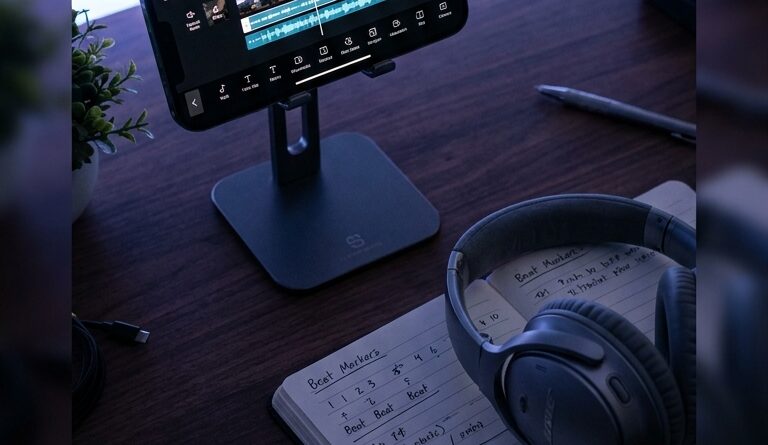
The ‘Beat-Sync Auto Cut’ Hack: Let AI Cut Your Reels To The Music In 60 Seconds
You can lose an absurd amount of time nudging clips one frame left, one frame right, trying to make a Reel hit the beat. On a phone screen, it is even worse. Your footage is fine. Your music is good. But the edit still feels a little off, and suddenly a “quick post” turns into 45 minutes of tiny timeline surgery. That is exactly where CapCut’s Auto Cut trick helps. Not as magic. Not as a final editor. As a rough-cut machine that gets you 80 percent of the way there in about a minute.
If you want a practical CapCut auto cut beat sync tutorial for Reels and TikTok, the big idea is simple. Let the app find the rhythm first, then you step in and fix the few cuts that matter most. That gives you speed without making your video look like every other auto-edited clip in the feed. The result is cleaner pacing, better retention, and far less time spent dragging clips around with your thumb.
⚡ In a Hurry? Key Takeaways
- Use CapCut Auto Cut to create a beat-matched rough draft fast, then manually tweak the first few cuts and your hero moments.
- Pick short, clear clips and stronger music with obvious drops or drum hits for much better sync results.
- Do not trust any one-tap edit blindly. Check pacing, captions, and copyright-safe music before you post to Reels or TikTok.
Why this hack works so well
Most people think beat syncing means every cut must land perfectly. That is not really true. What matters is that the video feels locked into the music, especially in the opening seconds.
That is why Auto Cut is so useful. It handles the boring part. It scans your clips, finds a rhythm, and makes a draft that already feels alive. Then you keep the creative control by trimming, swapping, or deleting the weak cuts.
Think of it like having an assistant lay out all the ingredients before you cook. Dinner is not done, but the annoying prep work is.
The 60-second workflow for beat-synced Reels and TikToks
Step 1: Pick the music first
If your goal is a music-driven edit, start with the song. Not the clips.
Choose audio with obvious beats. Drums, claps, bass hits, or a clean drop all help the app find where cuts should go. Soft ambient tracks can work, but they usually give you weaker results.
For social posts, a 10 to 20 second section is often enough. You do not need the whole song. You need the part that pops.
Step 2: Gather only your best clips
This is where a lot of Auto Cut attempts go wrong. People dump in 28 random clips and hope the app reads their mind.
It will not.
Give it 6 to 12 strong clips that are short, clear, and visually different from each other. Movement helps. Close-up, wide shot, detail shot, reaction shot. That mix gives the edit energy.
If every clip looks nearly the same, the final video will feel flat no matter how well it hits the beat.
Step 3: Run CapCut Auto Cut
Inside CapCut, import your selected clips and use the Auto Cut option. The exact menu can shift a bit as CapCut updates, but the process is generally the same. Add clips, choose a template or music option, and let the app build the first draft.
For a basic CapCut auto cut beat sync tutorial for Reels and TikTok, this is the key mindset. You are not asking it to make the final video. You are asking it to create a decent first pass.
Step 4: Fix the first three seconds first
This is the part that matters most.
Watch the opening with sound on. Do the first two or three cuts land on obvious beats? Does the first shot make people want to keep watching? If not, fix that before anything else.
You do not need to perfect every transition to improve retention. You need a strong start.
Step 5: Adjust the “hero moments”
After the hook, find your biggest moments. The product reveal. The outfit switch. The dramatic angle. The punchline. The before-and-after.
Move those cuts so they land on the strongest beats, drops, or lyric changes. That is what makes a cheap edit feel expensive.
Leave the less important cuts alone unless they look truly awkward. This saves a ton of time.
What Auto Cut gets right, and what it gets wrong
What it does well
It is fast. Very fast.
It also helps when you are staring at a pile of clips and do not know where to start. A rough draft is often all you need to break the editing paralysis.
And because the app tends to cut on visible rhythm points, your video usually feels tighter than a totally manual edit done in a rush.
What it often messes up
It does not know your story.
That means it can cut away too early from a great reaction, hold too long on a boring shot, or place your best clip in the wrong part of the song. Sometimes it overuses effects too, which can make everything feel generic.
So yes, Auto Cut is smart. It is just not your creative director.
How to make the edit look less “auto-generated”
This is the difference between a helpful shortcut and a lazy-looking post.
Trim out the filler
If a clip says nothing, remove it. More cuts do not always mean more energy. Dead shots are dead shots.
Turn down cheesy effects
Auto tools love transitions, zooms, and flashy moves. Use a light hand. A clean hard cut often looks better than a busy effect.
Add one manual surprise
Maybe it is a speed ramp. Maybe it is a text hit right on the drop. Maybe it is one intentional pause before the beat lands again.
Just one or two human choices can stop the video from feeling like a template.
Match the captions to the rhythm
If you use on-screen text, make sure it appears with the music, not against it. Tiny timing tweaks here make a big difference.
Best types of videos for this hack
Auto beat sync works especially well for:
- Outfit changes and glow-ups
- Travel montages
- Food prep and recipe clips
- Product B-roll
- Gym and fitness edits
- Event recaps
- Before-and-after transformations
It is less useful for talking-head videos where the speech needs precise cuts. In those cases, use Auto Cut for B-roll sections only.
A simple formula you can copy
If you want a reliable starting point, try this:
- Open with your strongest visual in the first second.
- Use 5 to 8 quick cuts on the early beats.
- Save your best reveal for the drop or biggest hit.
- Slow down for half a second if you want contrast.
- End on a clean visual or loop-friendly frame.
If you want to squeeze even more out of one edit after that, The ‘Loop-Once, Post-Everywhere’ Hack: Turn One Edit Into Infinite Social Clips With AI Smart Loops is a smart next move. It pairs nicely with beat-synced rough cuts because you can turn one solid edit into multiple platform-ready versions without starting over.
Common mistakes that waste time
Using too many clips
More footage does not help if half of it is weak. Curate first.
Choosing music with no clear pulse
If the beat is fuzzy, the cuts will be fuzzy too.
Trying to “fix” every auto decision
That defeats the point. Fix the hook, the highlights, and anything that looks obviously wrong.
Posting the first draft untouched
This is how you end up with videos that feel disposable. Spend two or three extra minutes making it yours.
Quick notes on Reels and TikTok posting
Before publishing, preview the video inside the platform if you can. Sometimes text placement, crop, or timing feels slightly different after export.
Also double-check your audio rights. If you are using music inside CapCut and posting commercially, make sure it fits the platform and your account type. The last thing you want is a muted post after doing all the editing work.
At a Glance: Comparison
| Feature/Aspect | Details | Verdict |
|---|---|---|
| Speed | Auto Cut can build a beat-matched rough edit in under a minute if your clips are ready. | Excellent for fast posting |
| Creative Control | The app guesses pacing well, but it cannot understand your best story moments without manual tweaks. | Good as a starting point, not a finish line |
| Final Quality | With light editing after Auto Cut, the result can look polished and beat-driven instead of template-heavy. | Best when you add a human pass |
Conclusion
You do not need to hand-place every cut to make your videos feel sharp. That is the real win here. In feeds packed with AI-made content, standing out is not about doing everything manually. It is about moving faster without making your work feel generic. Beat-synced edits still grab attention fast, especially in those first three seconds, and CapCut Auto Cut gives you a practical way to get there without burning half your day on a phone timeline. Use it as a rough-cut engine, not a one-tap final answer. Keep the opening tight, fix your key moments, and add a couple of choices that feel like you. That is how you post more often, keep your style, and still get that polished rhythm that makes people stop scrolling.