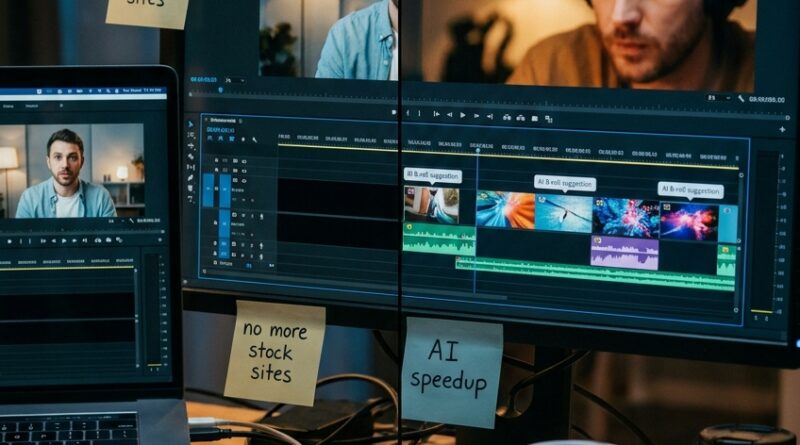
The ‘Instant B‑Roll Brain’ Hack: Let AI Fill Your Cuts So Your Reels Never Look Cheap Again
You can feel it when a reel is missing something. The talking head is fine. The captions are clean. The hook even works. But the whole thing still looks a little cheap because the screen never changes, and viewers start drifting before your best point lands. That is usually the moment people tell themselves they need more B-roll, then immediately hit the wall. Stock sites are slow. Matching clips to your script is annoying. Cropping out watermarks and logos is a chore. Timing every cut to the beat can eat your whole evening. This is where an ai b roll generator for social media videos starts to earn its keep. Instead of treating B-roll like a separate project, these tools can scan your script or timeline, suggest visuals, place them over your cuts, and give your reel motion and texture in minutes. That means your videos can feel more original and more polished without turning daily posting into a second job.
⚡ In a Hurry? Key Takeaways
- An ai b roll generator for social media videos helps fill dead spots in your reel fast, so your edits feel more dynamic and less template-driven.
- Start with your finished talking-head cut, then let tools like HeyGen, Opus Clip, or B-Roll Genie suggest and place supporting clips before you fine-tune by hand.
- Always review AI picks for brand fit, copyright safety, and obvious visual mistakes, because speed is great but random footage can still hurt the final post.
Why your reels still feel flat even when the edit is “done”
A lot of creators think the hard part is filming the talking head. It is not. The real time sink usually starts after that.
You trim the pauses. Add captions. Maybe throw in a zoom cut every few seconds. It still feels stiff.
That is because good short-form video usually needs visual relief. Not for the sake of being fancy, but to keep the brain interested. B-roll gives the viewer a break from your face while still supporting the point you are making.
If you are talking about growth, show analytics. If you mention late-night editing, show the timeline. If you explain burnout, cut to the messy desk, the coffee, the notifications. Tiny visual cues do a lot of heavy lifting.
Without them, many reels start to look like every other auto-caption video in the feed.
What an AI B-roll tool actually does
At its simplest, an ai b roll generator for social media videos listens to your words, reads your captions, or scans your transcript and tries to match visual clips to key moments.
Some tools pull from built-in stock libraries. Some suggest overlays based on your script. Some work inside a bigger editing flow and drop clips right onto the timeline.
The goal is not to replace your taste. The goal is to kill the boring part.
The job AI handles well
AI is good at finding obvious visual matches fast. Mention “email inbox,” and it may suggest someone sorting messages. Mention “gym routine,” and it may pull fitness footage. Mention “deadline,” and it may find calendar, clock, or laptop shots.
That first pass matters because it gets you moving.
The job you still need to handle
You still need to check whether the footage feels on-brand, whether it looks too generic, and whether the pacing fits your style. AI can get you to 70 or 80 percent quickly. You bring it home.
The no-friction workflow that makes this useful
The best way to use these tools is not to start with them. Start with your core message first.
Step 1: Finish your rough talking-head cut
Get the message tight before you ask AI for visuals. If your speech rambles, the B-roll will just decorate confusion.
If you want to speed up this first stage too, it is worth reading The ‘AI Rough Cut Relay’ Hack: Use One Smart Tool To Auto-Build Your First Edit In Minutes. It fits nicely here because a faster rough cut gives your B-roll tool a cleaner script and timeline to work from.
Step 2: Generate captions or a transcript
Most AI B-roll systems work better when they can read your words. A clean transcript makes matching much more accurate.
Step 3: Run the AI B-roll pass
This is where HeyGen, Opus Clip, or a Premiere add-on like B-Roll Genie comes in. Let the tool suggest visual inserts based on your script.
Step 4: Keep only the clips that help the story
Do not keep everything just because it is there. If a clip does not add context, emotion, or movement, cut it.
Step 5: Check rhythm and screen clutter
Make sure B-roll does not cover important captions, your face, product screenshots, or call-to-action text. A lot of AI-generated placements are useful, but not always polite.
Three tools worth knowing
HeyGen’s built-in B-roll features
HeyGen is known for AI avatars and talking-video creation, but its built-in visual support options can be handy for creators who want one place to assemble a polished short video quickly.
This is best for people who want a guided system and do not want to bounce between five apps. If your whole workflow already lives there, adding supporting visuals is much less painful.
The trade-off is control. You may not get the same deep timeline freedom you would in a full editor.
Opus Clip’s AI B-roll layer
Opus Clip is a strong fit for people turning long videos into short clips. It can detect highlight moments, build social cuts, and add B-roll suggestions on top.
That makes it useful if your content starts as podcasts, webinars, interviews, or YouTube videos. Instead of manually dressing up every excerpt, you can let the tool propose visual support for the most important beats.
The catch is that it works best when your source material is already solid. It can save time, but it cannot rescue a muddy message.
Premiere extensions like B-Roll Genie
If you already edit in Adobe Premiere Pro, this route may feel the most natural. An extension can sit inside the editing environment you already know, help source relevant clips, and make placement less tedious.
This is the sweet spot for creators who want AI speed but still like hands-on editing. You stay close to the timeline and keep more control over pacing, framing, and visual taste.
The downside is setup. It is not as beginner-friendly as all-in-one mobile apps.
How to keep AI B-roll from making your videos look generic
This part matters. AI can save your time and still damage your style if you use it lazily.
Mix AI picks with your own real footage
The best reels usually combine three things. Your face. Screen recordings or product shots. Supporting B-roll.
If every insert comes from stock, the video can feel oddly anonymous. Even a few original cutaways from your desk, phone, workspace, or neighborhood can make the whole reel feel more yours.
Use B-roll to clarify, not just decorate
A random clip of a person typing is not automatically helpful. Match visuals to the exact claim you are making.
If you say, “I wasted two hours searching for footage,” show a cluttered search screen, a timeline full of gaps, or a folder mess. Be specific.
Do not overfill every second
Some creators hear “more B-roll” and turn the reel into a slideshow. That can be just as exhausting as a static talking head.
Use B-roll where it earns attention back. Not everywhere.
Watch for copyright and branding issues
Check license terms. Check visible logos. Check whether the clip looks like an obvious recycled stock shot people have seen a hundred times.
The whole point is to stand out a bit more, not blend into the stock-footage soup.
When this hack is most useful
You do not need AI B-roll for every post. Sometimes a simple direct-to-camera clip is the right call.
But this approach is especially useful when:
- You post daily or near-daily and cannot spend an hour hunting inserts for each reel.
- You repurpose longer videos into shorts and need fast visual variety.
- You want your content to feel more premium without hiring an editor.
- You are tired of CapCut-template sameness and want a look that feels more like your own.
Common mistakes to avoid
Letting the AI cover your best captions
Always preview on a phone-sized frame. A clip can look fine on desktop and hide your key words on mobile.
Using irrelevant footage because it “looks cool”
Pretty footage is not the same as useful footage. If the visual does not support the line, it can confuse the viewer.
Ignoring pacing
Fast cuts are not always better. If every B-roll insert lasts half a second, people may feel the edit is trying too hard.
Trusting the first result blindly
AI suggestions are drafts. Treat them like an assistant’s first pass, not the final answer.
At a Glance: Comparison
| Feature/Aspect | Details | Verdict |
|---|---|---|
| Best for speed | Opus Clip and HeyGen can quickly suggest and place visual support with minimal setup. | Great for solo creators posting often. |
| Best for control | Premiere extensions like B-Roll Genie keep you close to the timeline and make manual fine-tuning easier. | Best if you already edit on desktop and care about polish. |
| Biggest risk | Generic stock choices, awkward placement, and visuals that do not really match your message. | Always review AI output before posting. |
Conclusion
If your reels keep feeling one layer short, this is probably the missing piece. Right now a lot of creators are leaning on CapCut templates and basic auto-caption apps, which is why feeds are starting to look the same and TikTok is cracking down on unoriginal content. AI B-roll tools are quietly becoming the next edge, because they let a solo creator add depth, story and polish on top of their existing clips without sacrificing speed. The smart move is not to hand your whole style over to automation. It is to use HeyGen’s built-in B-roll, Opus Clip’s AI B-roll layer, or Premiere extensions like B-Roll Genie as a fast first pass, then add your judgment on top. Do that, and you can move beyond template spam and ship original, cinematic-looking reels that still fit into a daily posting schedule.