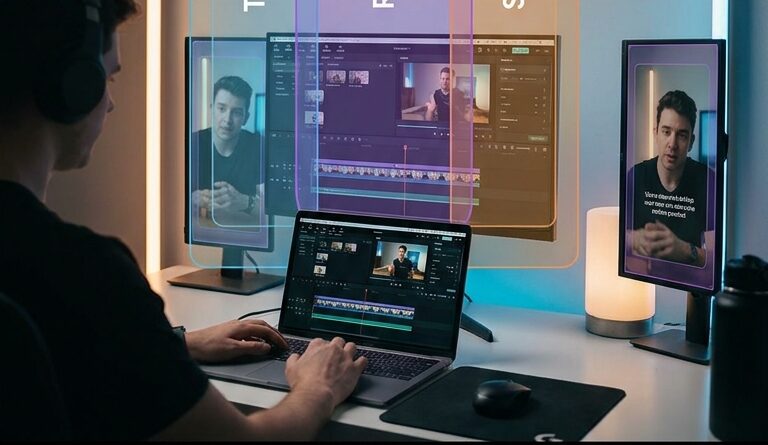
The ‘Safe-Zone Auto-Crop’ Hack: Stop Letting TikTok and Reels Chop Off Your Best Edits
You are not imagining it. You line up your hook, place your captions just right, tuck a call to action at the bottom, and then TikTok, Reels, or Shorts drops buttons, captions, and profile junk right on top of the good stuff. It feels petty, but it costs real views. Worse, it makes polished edits look sloppy for reasons that are not your fault. The fix is not some fancy new app. It is a simple safe-zone auto-crop habit. Build your edit inside a protected middle area, then let each platform do its annoying little overlay thing without wrecking your composition. Once you set this up in your editor, you stop babysitting exports and stop redoing text placement every time you post somewhere new. If you make short-form content regularly, this is one of those boring workflow tweaks that quietly saves hours and protects clicks, watch time, and your sanity.
⚡ In a Hurry? Key Takeaways
- The TikTok Reels Shorts safe zone video editing hack is simple: keep all important text, faces, and CTAs inside a centered “safe” area instead of using the full 9:16 frame.
- Add a reusable safe-zone guide overlay in CapCut, Premiere Pro, Final Cut, or Canva so every edit starts with the same protected layout.
- This matters even more now because auto-captions, smart reframing, and clip tools can place key elements in risky spots unless you give them guardrails.
What the safe-zone auto-crop hack actually is
Think of your vertical video like a stage. The full frame is 1080 by 1920, but not all of that stage is really available. Apps cover parts of it with captions, buttons, usernames, descriptions, and other interface clutter.
The hack is to stop treating the whole frame as usable. Instead, you edit as if only the center portion is truly safe. Your subject, on-screen text, product shots, and calls to action all stay inside that protected area.
That means:
- No important text jammed against the bottom edge.
- No key visual gag living in the lower right corner.
- No captions sitting on someone’s forehead because one app crops tighter than another.
It is less about exact perfection and more about creating a repeatable buffer. Once you do that, the same clip survives TikTok, Instagram Reels, and YouTube Shorts a lot better.
Why this suddenly matters so much
Short-form editing tools are getting smarter fast. Auto-captions, AI clipping, and smart reframing can save a ton of time. But they also make it very easy to trust the frame too much.
The app sees a nice clean 9:16 canvas. The platform sees empty space to fill with UI.
That is why creators end up with:
- CTAs hidden behind captions or action buttons
- Headlines covered by usernames and follow prompts
- Talking-head clips where auto-captions land too high or too low
- B-roll details lost when a platform crops more aggressively
If you are already using AI tools to repurpose clips, this is a good companion habit. In fact, if you want to make one edit stretch across platforms without constant rework, this pairs nicely with The ‘Loop-Once, Post-Everywhere’ Hack: Turn One Edit Into Infinite Social Clips With AI Smart Loops.
The practical safe-zone layout to use
You do not need lab-grade measurements here. You need a layout that is conservative enough to work almost everywhere.
A good default safe zone for 9:16 video
For a 1080 x 1920 vertical video, use these rough boundaries:
- Top buffer: keep important text at least 250 pixels down from the top
- Bottom buffer: keep important text and CTAs at least 350 to 420 pixels up from the bottom
- Side buffer: keep key text and faces at least 90 to 120 pixels away from the left and right edges
If you want the simple version, use the middle 80 percent of the frame for anything important, and be extra cautious with the bottom 20 percent.
What can go outside the safe zone
Background texture, extra b-roll, blurred edges, decorative graphics, and non-essential motion can live near the edges. If it gets clipped or covered, no big deal.
What must stay inside it
- Hook text
- Captions
- Faces and eyes
- Products or demos
- Lower-third labels
- Calls to action like “link in bio,” “follow,” or promo text
How to set this up once in your editor
This is the part that saves your future self.
Option 1: Make a permanent guide overlay
Create a transparent PNG with a rectangle marking your safe zone. Drop it on the top track of your timeline. Lock it. Lower the opacity if needed. Now every edit happens under that guide.
This works well in:
- CapCut
- Premiere Pro
- Final Cut Pro
- DaVinci Resolve
- Canva
Option 2: Build a template project
Set up a 1080 x 1920 project with:
- Your safe-zone guide
- Default text styles
- Preferred caption position
- A title area near the upper middle
- A CTA area above the danger zone at the bottom
Then duplicate that project every time you make a new clip. This is boring. It is also wildly effective.
Option 3: Use title-safe guides if your editor has them
Some editors already include safe margins or title-safe overlays. Turn them on, then tighten your layout even more for social. Traditional title-safe was made for TV, but the habit still helps.
Platform-by-platform trouble spots
Each app is slightly annoying in its own special way.
TikTok
The lower area is risky because captions, description text, and action buttons fight for space. The right side can also get cluttered. Keep CTAs away from the bottom right unless you enjoy hiding your own work.
Instagram Reels
Reels can feel especially unforgiving with bottom overlays and feed previews. Text that looks fine in editing can suddenly sit too low, especially when viewed in different parts of Instagram.
YouTube Shorts
Shorts is often a bit cleaner, but that does not mean “use the whole frame.” Phone screens vary, and interface elements still eat space. Also, if your clip gets reused elsewhere later, the safe zone keeps it flexible.
The fastest editing rule: center high, not center low
If you remember one thing, remember this. Place your important text slightly above center, not below it.
Why? Because the bottom of vertical video is where platforms love to pile on junk. If your hook, subtitles, or offer text lives too low, you are asking for trouble.
A lot of creators naturally place captions near the lower third because that feels cinematic. On social apps, cinematic often loses to interface clutter. Raise it a bit.
How this helps your captions and AI tools behave better
Auto-caption tools are useful, but they are not mind readers. They often put text where it looks technically centered, not where it is safe for every platform.
By giving your editor a safe-zone guide, you can:
- Move captions into a protected band
- Keep speaker names from colliding with app overlays
- Make smart reframing less likely to crop faces awkwardly
- Check that generated clip titles stay visible everywhere
This turns AI from “pretty good, but needs cleanup” into “pretty good, and safe enough to post faster.”
A simple workflow you can use today
Step 1: Create your master edit in 9:16
Start with your best vertical version, but do not use the full frame for important elements.
Step 2: Add a safe-zone overlay
Either import one or build one with guides and shapes in your editor.
Step 3: Reposition text first
Before polishing anything else, move hook text, captions, and CTAs into safe areas.
Step 4: Check faces and products
If eyes, hands, packaging, or screenshots are too close to edges, nudge them inward.
Step 5: Export once, preview everywhere
Upload privately or draft-post on TikTok, Reels, and Shorts. Check the frame on your phone, not just your desktop monitor.
Step 6: Save the template
Once it works, reuse it forever. That is the whole point.
Common mistakes that make good edits fail
- Putting all captions at the very bottom because “that’s where subtitles go”
- Using tiny text near the edges
- Letting smart reframing zoom too tight on a face
- Assuming TikTok-safe means Reels-safe
- Designing CTAs for the lower third without checking overlays
- Previewing only in the editing app and nowhere else
Is this overkill for small creators?
Not at all. Honestly, it helps smaller creators more.
If you are a big account, a messy frame may still get watched. If you are trying to grow, every bit of friction matters. A hidden CTA, blocked caption, or cramped composition can hurt retention before your video gets a fair shot.
This is one of those fixes that looks minor but has outsized impact because it touches every clip you post.
At a Glance: Comparison
| Feature/Aspect | Details | Verdict |
|---|---|---|
| Full-frame editing | Uses the entire 9:16 canvas for text, faces, and CTAs, but leaves key elements exposed to platform overlays and cropping. | Looks fine in-editor, risky after upload. |
| Safe-zone template workflow | Keeps important visuals inside a protected middle area with reusable guides in your editor. | Best balance of speed, consistency, and cross-platform safety. |
| AI auto-captions and reframing | Fast and helpful, but can place text or framing in spots that apps later cover or crop. | Great tool, but only when paired with safe-zone guardrails. |
Conclusion
The TikTok Reels Shorts safe zone video editing hack is not glamorous, and that is exactly why it works. While everyone talks about AI clip generators and one-click editing, creators are still losing watch time and clicks to something much dumber. Buttons, overlays, and crop shifts are stomping on the parts of the frame that actually matter. A simple safe-zone template gives you a repeatable fix you can lock into your editor today. It protects hooks, captions, faces, products, and CTAs. It also makes newer tools like auto-captions, smart reframing, and clip generators a lot safer to trust. Set it up once, test it on your phone, and you will spend less time babysitting exports and more time posting videos that survive the trip from app to app intact.