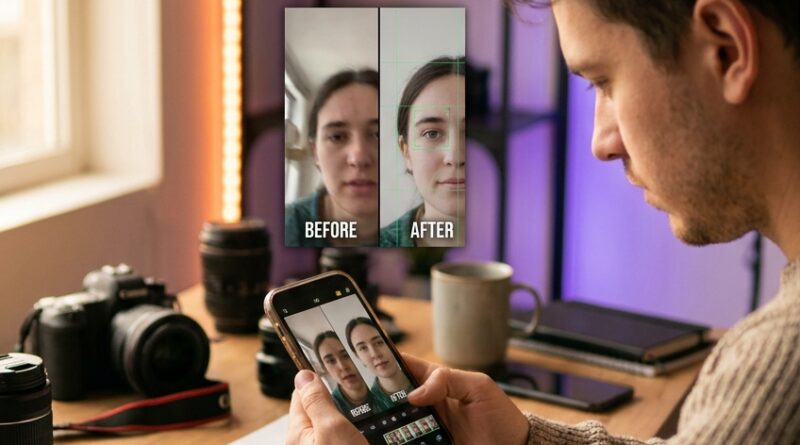
The “One-Tap Face Swap Fix” Hack: Save Ruined Reels When Your Cut Jumps On Your Face
You know the feeling. You finally record a reel where the hook is strong, your energy is right, and you actually like how you sound. Then you cut out the pauses, watch it back, and your face snaps left, right, up, down between every edit. Suddenly it looks cheap. Not because your idea is bad, but because the framing is fighting the viewer. That jittery “talking head bounce” is one of the fastest ways to make a solid reel feel homemade in the wrong way.
The good news is this is usually fixable without a reshoot. The trick is face tracking, then applying auto-reframe or keyframed position so your eyes stay anchored in roughly the same spot across every cut. If you have been searching for how to fix jump cuts in reels with face tracking, think of it as telling your editor, “Keep my face here, no matter where each clip starts.” A lot of apps now do this in one tap, or close to it, and the result is a much smoother, more trustworthy looking video.
⚡ In a Hurry? Key Takeaways
- Use face tracking or auto-reframe to keep your eyes and face in the same area of the frame across jump cuts.
- If your app has no face tracking, crop in slightly and keyframe position manually on each clip for a quick rescue.
- This works best when you shoot in 4K or leave extra space around your head, so the editor has room to reposition without ruining quality.
Why jump cuts look so bad on your face
Jump cuts themselves are not the problem. Viewers are used to fast edits now. The problem is inconsistent framing.
If your face is centered in one clip, slightly higher in the next, then off to the side in the one after that, the viewer feels the movement even if they cannot explain it. It reads as messy. It also pulls attention away from what you are saying.
Big creators avoid this by locking visual position. Their cuts are fast, but their eyes stay put. That makes the reel feel controlled.
The one-tap fix
The fastest fix is to use an editor with face tracking, subject tracking, or auto-reframe. Different apps call it different things, but the goal is the same. The software detects your face, then adjusts crop and position so your head stays lined up across cuts.
What to look for in your editing app
Open your reel in your editor and look for features with names like:
- Face tracking
- Subject tracking
- Auto reframe
- Smart crop
- Auto pan and zoom
CapCut, Premiere Pro, Final Cut Pro, DaVinci Resolve, and several mobile editors all offer some version of this. On phone apps, it is often hidden inside crop, tracking, or camera movement tools.
How it works in plain English
You tap your face once. The app follows it. Then each clip gets reframed so your head lands in a similar spot. That is the “studio” look you are noticing on polished reels.
How to fix jump cuts in reels with face tracking, step by step
Here is the simple workflow.
1. Cut the reel first
Remove your mistakes, pauses, and filler words before you track anything. If you change the cuts later, you may have to redo part of the tracking.
2. Pick your anchor point
Choose where you want your face to sit. Usually that means your eyes land in the upper middle area of the frame, not dead center. The exact spot matters less than consistency.
3. Apply face tracking or auto-reframe
Select each clip, or the whole sequence if your editor allows it, then run the tracking tool. Most apps will analyze the footage for a few seconds and apply the crop automatically.
4. Watch for drift
Tracking is good, not magical. Check for moments where your hand covers part of your face, you turn too far, or the app suddenly follows the wrong thing. Fix those sections manually.
5. Add a tiny crop if needed
Sometimes the best fix is a subtle punch-in, like 105 to 115 percent. That gives the app room to reposition your face without showing the edge of the frame.
If your app does not have face tracking
You can still rescue the reel.
Use manual keyframes
This takes a little longer, but it works almost everywhere.
- Split your reel into individual clips at each jump cut.
- Scale each clip up slightly.
- Move the frame so your eyes line up with the same spot every time.
- Add keyframes only if you move during the shot and need the frame to follow you.
Think of it like hanging a row of picture frames. If one is half an inch too high, everyone notices. Same deal here.
Use guides if your editor has them
Some apps let you show a grid. That helps you line up your nose, eyes, or chin across clips. It sounds basic, but it makes manual reframing much faster.
Best results come from shooting with the fix in mind
The easiest reels to save are the ones with extra space around your head.
Give yourself crop room
Do not frame your face too tight while shooting. Leave a little headroom and side space. That gives tracking tools room to move the crop without making the image soft.
Shoot in higher resolution if possible
If you record in 4K and export in 1080×1920 for reels, you have extra pixels to work with. That means you can crop and reposition more aggressively while still keeping things sharp.
Keep your camera locked
A tripod helps. So does a stable phone mount. Face tracking can fix subject position, but it cannot always clean up shaky camera movement in a natural way.
When the “one-tap” fix is not enough
Sometimes the cut still feels wrong even after your face is aligned. That usually means one of three things is happening.
Your expression changes too hard between cuts
If you are smiling in one clip and stone serious in the next, the cut will still feel abrupt. Tighten the edit differently or add a b-roll overlay for that section.
Your body position changes too much
If your shoulders are turned left in one shot and right in the next, aligned eyes will help, but not fully hide the shift.
The background is jumping too
Sometimes the face is fine, but the background line moves wildly. In that case, use a stronger crop or a subtle background blur if your editor offers it.
A good workflow for batch creators
If you are making reels for TikTok, Reels, and Shorts all at once, save this as part of your repeat process. Clean cuts first. Face lock second. Captions and graphics after that.
And once one version is working, you can stretch that same edit further with The ‘Loop-Once, Post-Everywhere’ Hack: Turn One Edit Into Infinite Social Clips With AI Smart Loops. That is a smart next step if you want to turn one polished reel into multiple platform-ready versions without starting over.
Common mistakes that make face tracking look worse
Over-cropping
If you zoom in too much, the reel can start to feel claustrophobic. Leave a little breathing room.
Letting the frame float constantly
The goal is not to have the frame chase every tiny head movement. It is to keep your face generally locked. Too much motion can look seasick.
Ignoring eye line
Your eyes matter more than your forehead or chin. When in doubt, line up the eyes.
Using different zoom levels on every cut
A slight punch-in for emphasis is fine. Random changes are not. Keep zoom choices intentional.
At a Glance: Comparison
| Feature/Aspect | Details | Verdict |
|---|---|---|
| One-tap face tracking | Fastest way to keep your face aligned across cuts with minimal manual work. | Best option if your app supports it. |
| Manual keyframing | Works in almost any editor, but takes more time and a careful eye. | Reliable backup when auto tools are missing or messy. |
| Shooting with extra space | Gives you room to crop and reframe without losing quality. | The easiest habit to start now for better future edits. |
Conclusion
You do not need a fancy studio or a full reshoot to clean up a jittery reel. Most of the time, you just need to keep your face and eye line anchored so the cuts feel intentional instead of chaotic. That is why this fix matters right now. Short-form feeds are brutal, and people swipe the second a video feels shaky or low-budget. A clean, locked-in face line makes your reel look more polished, boosts watch time, helps you save footage you already shot, and works whether you are posting to TikTok, Reels, Shorts, or all three in one batch. Small fix, big difference.