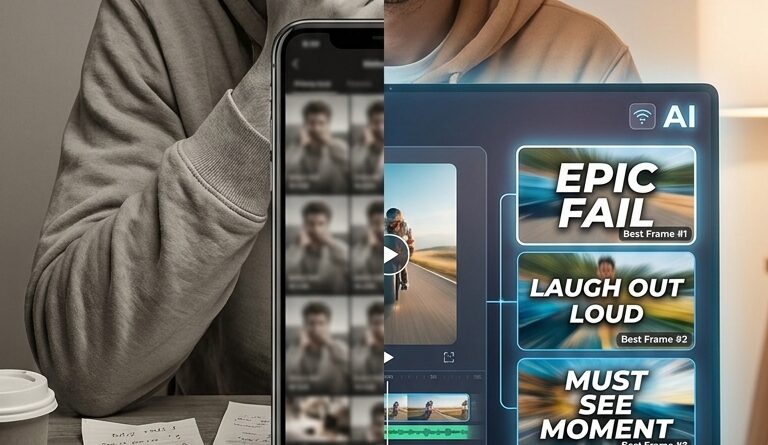
The ‘One-Click Thumbnail Brain’ Hack: Let AI Pick Your Best Frame And Stop Guessing Your Cover Image
You finish the edit, trim the captions, check the audio, export the Reel or TikTok, and then hit the most annoying part. The thumbnail. Suddenly you are scrubbing through frames like a detective, grabbing screenshots, pinching to crop, trying one face, then another, then wondering why none of them look good once they shrink into the feed. It is a tiny decision that somehow eats ten minutes and a weird amount of mental energy. Worse, a rushed cover can make a strong video look boring before anyone even taps it.
That is where an ai thumbnail generator for reels and tiktok can help. Think of it as a one-click thumbnail brain. Instead of guessing, you let a tool scan your video, pull the clearest frames, and suggest the ones with the best expression, composition, and readability. You still make the final call. But now you are choosing from smart options instead of random screenshots. For busy creators, that is the difference between posting confidently and posting with a shrug.
⚡ In a Hurry? Key Takeaways
- An ai thumbnail generator for reels and tiktok can quickly surface your strongest video frames so you stop guessing which cover to use.
- Pick thumbnails with a clear face, strong contrast, and enough empty space for any on-screen text or cropping.
- Do not trust the AI blindly. Always preview the thumbnail in a small mobile grid, because that is where weak covers usually fall apart.
Why this last step feels so frustrating
Thumbnail picking looks easy from the outside. It is not. A good cover has to do several jobs at once.
It needs to look sharp at a tiny size. It needs to hint at the story. It needs to survive platform cropping. And it needs to make someone stop scrolling long enough to care.
That is a lot to ask from a single frame pulled from a moving video.
Most people end up choosing based on convenience. They pick a frame where their eyes are open, or where nothing blurry is happening, and hope for the best. The problem is that “fine” is not the same as “clickable.”
What the “one-click thumbnail brain” hack actually is
The hack is simple. Add one extra step to your posting workflow where AI reviews your finished short video and suggests the best still frames for use as a cover.
Some tools do this by detecting faces, expressions, motion blur, lighting, and framing. Others rank frames based on visual clarity and likely engagement. A few even offer auto-cropping for vertical feeds, headline text placement, or alternate cover styles.
You are not asking AI to design a magazine cover from scratch. You are asking it to do the boring first pass faster than you can.
What AI is good at here
It is good at speed. It can scan hundreds of frames in seconds.
It is good at consistency. It will catch sharp, well-lit frames you may skip past while tired.
It is good at narrowing choices. Three strong options are easier to judge than fifty random screenshots.
What AI is not good at
It does not know your audience like you do.
It may pick a technically sharp frame that does not match the actual hook of the video. It can also favor obvious close-ups even when a wider shot tells the story better. So yes, use the machine. Then use your own taste.
How to use an ai thumbnail generator for reels and tiktok without overthinking it
You do not need a complicated workflow. Keep it boring and repeatable.
Step 1: Finish your edit first
Do not hunt for a thumbnail while the video is still changing. Export the near-final version first so the AI is reviewing what you are actually going to post.
Step 2: Run the video through your thumbnail tool
Upload the clip or use a built-in feature if your editor already has one. Let it generate its best frame suggestions. Most creators only need three to five options.
Step 3: Check for the “tiny grid” test
This matters more than people realize. A thumbnail can look great full screen and awful in a profile grid.
Shrink the preview. If the face disappears, the image looks muddy, or the subject blends into the background, skip it.
Step 4: Choose the frame that matches the promise
If your video is a tutorial, pick clarity over drama. If it is a reaction or storytime clip, a stronger facial expression may work better. The cover should match the feeling of the first few seconds, not bait people into something else.
Step 5: Make one tiny manual tweak if needed
Sometimes AI gets you 90 percent there. You may still want to nudge the crop, bump contrast a touch, or move text so it does not sit on top of your face. Keep it light. The goal is faster posting, not a new design hobby.
What makes a good short-form thumbnail
You do not need graphic design training. You just need a quick checklist.
Look for these traits
One clear subject. Busy frames get messy fast on mobile.
Readable expression. Eyes, face angle, and emotion matter more than people admit.
Good lighting. If the face is dim, the cover usually dies in the feed.
Strong contrast. Your subject should stand out from the background.
Safe crop area. Make sure important details are not too close to the edge.
Avoid these common thumbnail traps
Mid-blink faces. Motion blur. Tiny objects trying to carry the whole image. White captions over bright backgrounds. Over-zoomed crops that look fuzzy. And frames that are technically clean but emotionally dead.
Why this works better than screenshot roulette
Manual screenshot picking feels free, but it is expensive in a sneaky way. It drains attention at the exact moment you should be posting and moving on.
The AI shortcut saves time, but more importantly, it reduces decision fatigue. That matters if you are publishing often.
Creators who batch content already know this truth. The fewer tiny choices you leave to the end, the more likely you are to stay consistent. If you are already trying to speed up your workflow, this pairs nicely with The ‘Prompt Your B‑Roll’ Hack: Turn One Static Shot Into Scroll‑Stopping Reels In Minutes, because both ideas cut creative friction without asking you to learn a whole new app.
Do you need a fancy tool?
No. You just need something that can do three things well.
1. Pull sharp candidate frames
If the suggestions are blurry or repetitive, the tool is not saving you time.
2. Preview vertical cropping
A desktop-friendly image means nothing if it gets mangled inside TikTok or Reels.
3. Let you export fast
If you have to jump through five menus, the “hack” becomes another chore.
The best tool is usually the one already sitting inside your editing workflow, or one that takes less than a minute to use. Fancy features are nice. Friction is not.
When AI thumbnails help the most
This trick is especially useful if you post talking-head clips, tutorials, reactions, mini-vlogs, product demos, or anything where your face or one main object carries the story.
It is also helpful when you are tired. That sounds silly, but it is true. Thumbnail choices often happen at the end of a work session, when your brain is done and every frame starts looking the same. AI is great for that moment because it gives you a fresh first pass.
When you should still do it by hand
If your short video depends on a very specific visual reveal, or if the best cover is not the sharpest frame but the most meaningful one, manual choice still wins.
For example, maybe the strongest thumbnail is the before-and-after shot, not your face. Or maybe the whole point is a product close-up with text placement in a precise spot. In those cases, AI should assist, not decide.
At a Glance: Comparison
| Feature/Aspect | Details | Verdict |
|---|---|---|
| Manual screenshot method | Free and familiar, but slow, inconsistent, and easy to second-guess. | Fine in a pinch, weak for high-volume posting. |
| AI thumbnail picker | Scans many frames fast, highlights sharp and expressive options, and cuts decision fatigue. | Best balance of speed and quality for most creators. |
| Full custom graphic cover | Strong branding and control, but adds time and often needs another app or design skill. | Great if branding is central, overkill for many daily short videos. |
Conclusion
If thumbnail picking keeps slowing you down, stop treating it like a tiny art project you must solve from scratch every time. Social feeds are crowded, and most creators are already stretched just getting videos finished. A weak cover can quietly cut your views even when the edit itself is good. Adding a simple “thumbnail brain” step with an ai thumbnail generator for reels and tiktok helps you make better choices faster, post more consistently, and get a visible upgrade without hiring a designer or opening another graphics tool. Few workflow tweaks give you this much upside in so little time. Let the AI do the first scan. You make the final call. That is the sweet spot.