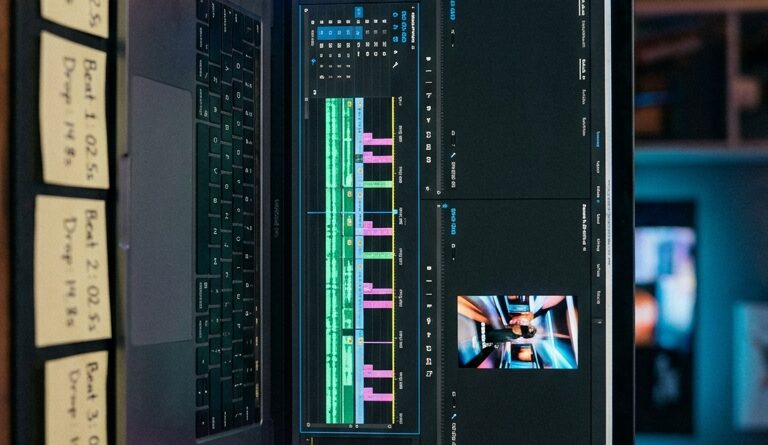
The ‘Beat-Sync Cutdown’ Hack: Auto-Cut Your Reels To Music In One Pass
You know that miserable part of editing where you zoom way into the timeline, drag each cut a hair left, then a hair right, then play it back and still think, “Why does this feel off?” That is the trap. Making every cut hit the beat by hand is slow, fiddly, and weirdly exhausting. The good news is the fix is much simpler than most creators think. If you are wondering how to sync video cuts to music for reels without burning an entire evening on it, the new beat-sync tools in apps like CapCut, Premiere Rush, VN, and even some built-in mobile editors can now do a solid first pass automatically. Not perfect. But good enough to get you 80 percent of the way there in one move. Then you spend your time polishing the best moments, not doing robot work. That is the whole hack. Let the app find the rhythm first, then you shape the story.
⚡ In a Hurry? Key Takeaways
- Use auto beat-sync as your first cut. It can line up clips to music in minutes instead of manually nudging every edit.
- Pick short clips, trim obvious dead space first, then let the editor detect beats and place cuts before you fine-tune.
- It works best for B-roll, product shots, travel clips, fitness, and performance footage. You still need to adjust story beats and talking parts by hand.
Why this hack matters now
For a long time, auto sync tools felt like a toy. They would cut randomly, miss the actual energy of the song, or spit out something that looked like a slideshow with a caffeine problem.
That has changed fast.
The newer versions are much better at spotting beat markers, drops, and repeating rhythm patterns. They are not magic editors. But they are very good at the one job most people hate doing by hand. Repetitive timing work.
That is why this matters. The best editing upgrade right now is not another flashy effect. It is anything that removes boring labor so you can post more often.
If you already use simple, built-in workflows, this fits nicely with The ‘Native Edit Stack’ Hack: Use Built‑In Tools To Make Reels And Shorts Look Pro In Half The Time. Same idea. Less app hopping. Less fuss. More finished posts.
The beat-sync cutdown hack, step by step
1. Start with too many clips, not too few
This hack works best when you have a batch of usable footage. Think 15 to 60 short clips. Product angles. Gym reps. Travel shots. Outfit changes. Cooking steps. Crowd moments. Car details. Anything visual.
If you only have three long clips, auto sync has much less to work with.
Aim for clips that are already roughly trimmed. You do not need perfection. Just remove the worst dead air. If a clip has four seconds of you reaching for the record button, cut that first.
2. Pick the song before you start cutting
This sounds obvious, but plenty of people still build the video first and try to force music onto it later. That is backwards if your goal is energy.
Choose the track, or at least the section of the track, first.
For reels, a 10 to 20 second section is usually enough. Look for one of these:
- A clear steady beat
- A noticeable drop
- A chorus with strong rhythm
- A section with obvious accents, not a soft ambient intro
If the beat is muddy, the tool has a harder job.
3. Use the app’s auto beat-sync or auto cut feature
The wording changes by app. You might see Beat Sync, Auto Cut, Sync to Music, Match Cut, or something similar. But the idea is the same. Import clips, add music, let the app detect the beat, and allow it to place cuts automatically.
Usually the process looks like this:
- Open a new vertical project
- Import your clip batch
- Add the music track
- Tap the auto sync or auto cut option
- Choose a template, beat density, or pacing style if offered
- Generate the cut
That is your first pass done.
4. Judge the result by energy, not perfection
This is the part people get wrong. They expect the first auto result to be final.
It will not be.
What you are looking for is momentum. Does it feel alive? Do the cuts mostly land with the music? Does the sequence keep moving? If yes, the tool has done its job.
Now you polish.
5. Fix only the moments that matter
After the auto cut, make a quick second pass and adjust:
- Clips that start too late
- Clips that end before the action lands
- Repeated angles that feel boring
- Any important visual reveal that needs one extra beat
- Talking moments that should not be chopped up
This is where the time savings show up. Instead of placing 30 cuts from scratch, you might only fix 6.
How to sync video cuts to music for reels without making it feel mechanical
Perfect beat matching can actually look stiff. Real editors know this, even if they do it by instinct.
Here is the simple rule. Not every cut has to hit the beat. The important cuts do.
Use the strongest beats for:
- A reveal
- A location change
- An outfit switch
- A product close-up
- A big movement, like a jump, turn, pour, or drop
Then let a few in-between clips breathe. That contrast makes the edit feel more natural.
If every shot is exactly the same length, viewers can feel the pattern. And not in a good way.
Where auto beat-sync works best
Best use cases
- B-roll montages
- Travel recaps
- Fitness edits
- Food prep videos
- Product showcases
- Fashion and outfit transitions
- Event highlights
Where it struggles
- Talking-head advice videos
- Comedy timing
- Story-led clips with a clear beginning, middle, and end
- Tutorials where the order of shots matters a lot
In those cases, use beat-sync for the intro or B-roll sections only. Do not hand your entire story over to automation.
A repeatable recipe you can use every time
If you want a dead simple workflow, use this:
- Shoot more clips than you think you need
- Trim obvious junk from each clip
- Pick one strong 15-second part of a song
- Run auto beat-sync
- Delete weak shots
- Move your best reveal to the strongest beat
- Let one or two clips run longer for breathing room
- Add text and captions last
That is it. Fast, repeatable, and much less painful than building from a blank timeline.
Mistakes that make auto-synced reels look cheap
Using long, untrimmed clips
If every source clip is five seconds long with random camera shake at the start, the app has to guess where the good part is. It will guess wrong a lot.
Choosing music with weak rhythm
Some songs sound great but do not give the software clear beat points. Save those for manual edits.
Keeping every auto-generated cut
The first pass is a draft, not a sacred document. Delete the awkward bits.
Ignoring the story
A fast edit is not automatically a good edit. Make sure the clips still make sense in order. Viewers should feel the energy, not the confusion.
What apps usually offer this now
Most creators already have access to some version of this without paying for a big new tool.
- CapCut often has the clearest beat-sync and auto cut options
- VN includes music-based cut help in some workflows
- Premiere Rush and template-based mobile editors can speed up rhythm cuts
- Some social apps and phone editors now suggest sync points automatically
So if you have been assuming this requires pro desktop software, it usually does not.
At a Glance: Comparison
| Feature/Aspect | Details | Verdict |
|---|---|---|
| Manual beat cutting | Very precise, but slow and mentally draining if you are editing lots of short clips. | Best for final polish or high-stakes edits |
| Auto beat-sync first pass | Fast, reliable for rhythm and momentum, especially on B-roll-heavy reels. | Best time-saver for most creators |
| Story-heavy or talking videos | Needs human judgment because pacing, clarity, and voice matter more than beat accuracy. | Use auto sync only for small sections |
Conclusion
If editing reels has started to feel like punishment, this is one of the smartest shortcuts you can use. Auto beat-sync tools are finally good enough to trust for the first draft, which means you stop wasting energy on repetitive cutting and save your attention for the creative choices that people actually notice. That is the real win. More posts, more testing, less dread. Right now the most useful editing upgrades are not fancy effects. They are the ones that remove boring work so you can ship more often. And for turning a rough batch of clips into something music-driven and watchable in minutes, the beat-sync cutdown hack is one of the best tricks hiding in plain sight.