The ‘Auto-Reframe Safety Net’ Hack: One Master Edit, Perfect Crops For Every Feed In 10 Minutes
You know the feeling. The YouTube edit is finally done, it looks great, and you think you can sleep. Then reality hits. Now you need a vertical version for Shorts, another for TikTok, maybe a square cut for Instagram, and suddenly your “finished” video turns into a second job. Faces drift out of frame. Captions get chopped. Your nice lower-third now lives in the danger zone on half the apps. It is frustrating because it feels like pure busywork, not creative work. The good news is that ai auto reframe video for tiktok reels and shorts tools have gotten much better. If you build one clean master edit first, you can let the software do most of the heavy lifting, then spend a few minutes fixing only the spots that matter. That is the safety net. One timeline, several crops, far less pain.
⚡ In a Hurry? Key Takeaways
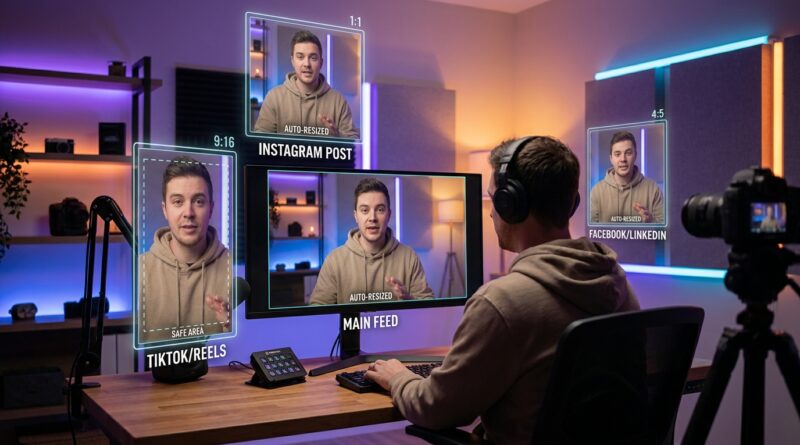
- Use one finished master timeline, then create 9:16, 1:1, and 4:5 versions with AI auto reframe instead of manually recropping from scratch.
- Keep faces and text safe by checking the first few seconds of every scene, then fix only the shots where the AI loses the subject.
- AI reframing is fast, but it is not magic. You still need safe margins for captions, graphics, and platform UI.
Why this hack works
The big mistake is treating every platform version like a brand new edit. That is how a 20-minute export turns into a four-hour headache.
A better approach is to make one master edit in your usual widescreen format, then use AI auto reframe as a safety net for the platform-specific versions. The software tracks the main subject, shifts the crop, and gives you a usable starting point for vertical and square outputs.
That means you stop doing the dumbest part by hand. You are no longer dragging the frame left and right for every sentence just to keep a face centered.
The 10-minute auto-reframe pipeline
1. Finish the master edit first
Do your normal YouTube or long-form edit first. Cut the dead space. Add your graphics. Lock the timing.
This matters because AI reframe works best when the story is already set. If you keep changing the edit after making vertical versions, you will create extra cleanup work for yourself.
2. Keep important visuals near the middle when possible
You do not need to edit like a robot, but it helps to avoid putting crucial text, screenshots, or faces way out on the edges.
If your source footage has two people sitting far apart in a wide shot, AI may struggle in vertical mode. It can track one speaker well. It cannot invent space that is not there.
3. Duplicate the sequence for each platform
Make copies of your master timeline for 9:16, 1:1, and 4:5. Name them clearly. Something like:
Master 16:9
Shorts 9:16
Instagram 4:5
Square 1:1
This keeps your original edit safe and stops accidental changes.
4. Run AI auto reframe on each copy
Most major editors now offer some version of this. Adobe Premiere Pro has Auto Reframe. CapCut has auto framing tools. DaVinci Resolve users can use smart reframing methods with tracking and repositioning. Even some online editors now do a decent job.
Set the target aspect ratio, let it analyze the clip, and wait for the first pass. This is where the time savings happen.
5. Check the problem spots, not every frame
Do not watch the whole thing like you are expecting failure at every second. Start with the places where AI usually stumbles:
- Fast movement
- Two people talking
- Screen recordings
- Text overlays
- Wide b-roll shots
- Jump cuts with a sudden subject position change
Most of the timeline will probably be fine. Your job is to catch the weak spots fast.
6. Protect text with safe zones
This is the part people forget. Even a perfect crop can still fail once TikTok, Reels, or Shorts adds its own buttons and captions.
Keep your important on-screen text away from the top and bottom edges. If your editor supports guides, use them. If not, create a simple safe-zone overlay and keep it on a top track while you check your exports.
If you want a broader publishing system around this, The ‘One-Hour Multi-Format Batch’ Hack: Turn Every Edit Into Reels, Shorts And TikToks At Once pairs nicely with this workflow because it helps you package all those versions in one sitting instead of letting them pile up.
7. Export presets once, then reuse them
Set up export presets for each platform and stop rebuilding them every time.
- 9:16 for Shorts, TikTok, Reels
- 4:5 for Instagram feed
- 1:1 for square posts if you still use them
Once the presets exist, your weekly process gets much faster.
What AI auto reframe does well, and where it still falls over
What it does well
It is excellent at following one person talking to camera. It is also good for basic b-roll, medium shots, and simple movement across frame.
For a creator posting often, that covers a lot of real-world content.
Where it struggles
It can get weird with podcasts, interviews, reaction videos, and any scene with multiple points of interest. It may also crop screenshots too tightly, which makes text unreadable.
So think of AI reframing as your fast assistant, not your final editor.
Best settings and habits for better results
Use slower camera movement when possible
If your footage is whip-panning all over the place, the crop can feel nervous in vertical mode. Cleaner source footage gives cleaner reframing.
Burn captions after the reframe, not before
If possible, add final subtitles after you create the new aspect ratio. That way you can position them safely for each platform instead of hoping one caption layout works everywhere.
Make separate text templates for vertical
Your nice YouTube lower-third probably will not survive a 9:16 crop. Create a simpler vertical version with larger text and fewer words.
Use manual keyframes only where needed
This is the real time saver. Do not “correct” every shot. Only keyframe the shots where the AI misses the mark.
A simple real-world workflow
Here is a practical version you can use this week:
- Edit the full video in 16:9.
- Duplicate the timeline three times.
- Run AI auto reframe for 9:16, 4:5, and 1:1.
- Check openings, speaker changes, b-roll, and text-heavy moments.
- Fix only broken shots.
- Add captions sized for each format.
- Export with saved presets.
That is it. No heroic all-nighter. No dragging crops by hand for every platform.
Who should use this hack
This is especially good for solo creators, small business owners, podcast teams, coaches, educators, and anyone posting clips across multiple apps without a dedicated editor.
If your content already has one clear subject and a repeatable style, you will get the biggest payoff fast.
At a Glance: Comparison
| Feature/Aspect | Details | Verdict |
|---|---|---|
| Speed | AI can create usable crops for 9:16, 1:1, and 4:5 in minutes from one master timeline. | Big time saver for repeat content. |
| Accuracy | Works best with one speaking subject, medium shots, and simple b-roll. Less reliable with wide shots and multiple speakers. | Good first pass, but still needs a human check. |
| Text Safety | AI can keep the subject in frame, but platform UI and caption zones still require safe margins and manual review. | Essential to check before posting. |
Conclusion
If you are still manually recropping every clip for every app, you are spending energy in the worst possible place. Short-form is exploding right now, and creators are getting worn down trying to force one video into four or five shapes by hand. AI auto reframe has quietly become good enough to do the first 80 to 90 percent of that work for you. It can follow your main subject, help protect your on-screen text, and turn one source timeline into 9:16, 1:1, and 4:5 versions with a lot less fuss. The smart move is not to trust it blindly. It is to use it as a safety net, then quickly fix the few shots it gets wrong. That gives you more posts, more consistency, and less soul-crushing busywork. Start with one master edit, build a repeatable pipeline, and you can ship more content this week, not someday when you finally hire an editor.